Git for Beginners: Basics and Essential Commands
Introduction
If you are a web developer, then Git is a very important tool for you.
With the help of Git, we can manage our code, view its history, and work easily with a team.
In this article, we will learn Git at a complete beginner level.
Git
Git is a Version Control System (VCS). It keeps a record of every change in your project, allowing you to go back to any previous version at any time.
Its functions are:
Tracking changes made in the code
Keeping a backup of the code
Providing the ability to revert to older versions
Use of Git
• Security: If a mistake happens, you can easily return to the previous correct version.
• Clarity: It tracks who made what changes and when.
• Convenience: It helps teams easily sync their work and develop new features separately.
Git is a standard tool in the software industry.
Git Basics and Core Terminologies
Repository (Repo):
This is the main folder or database of your project, where all project files and their complete history are stored.
Local Repository:
The copy that exists on your computer.
Remote Repository:
The copy that is hosted on an online server such as GitHub or GitLab, which other team members can also access.
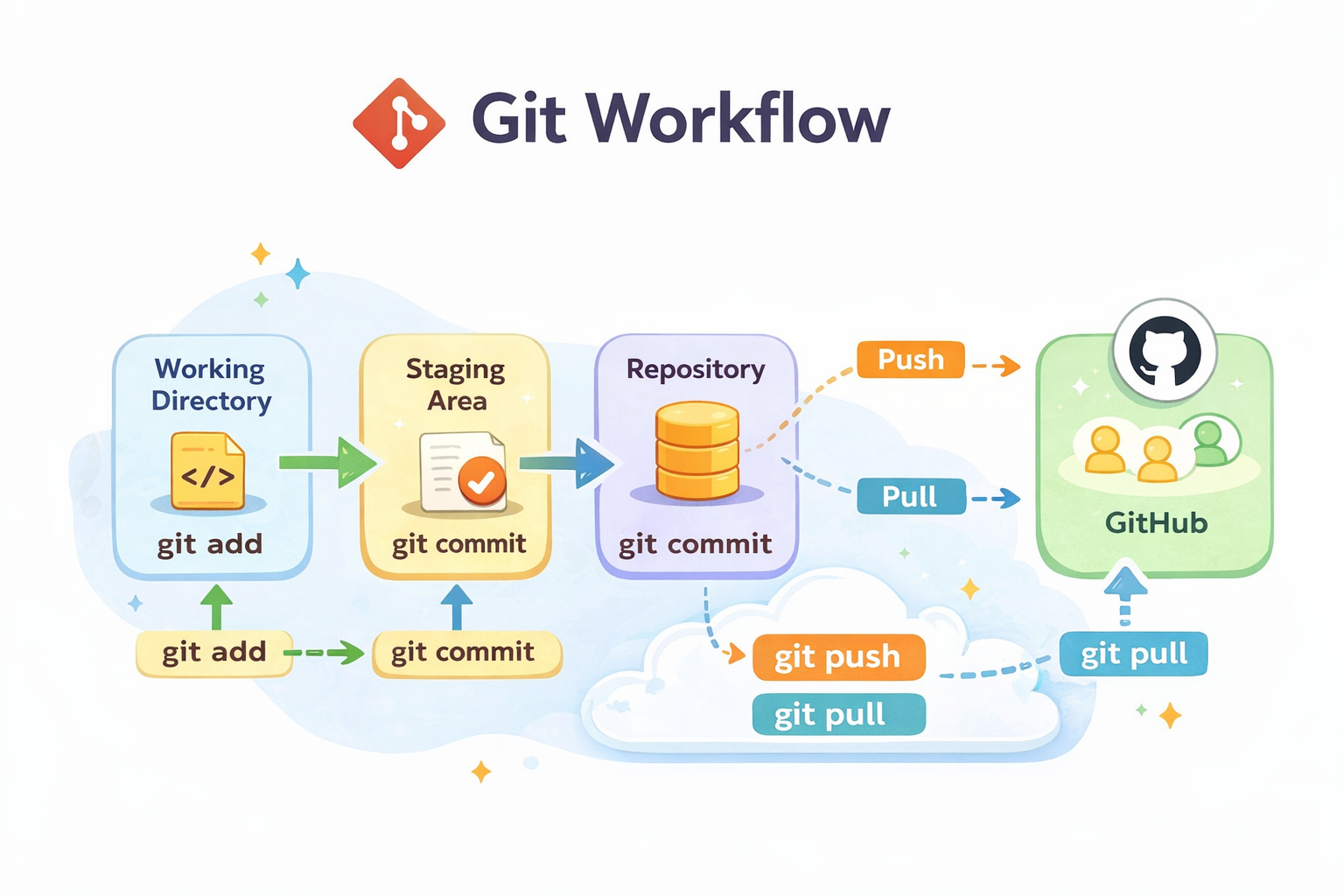
Working Directory:
This is the place where you write the actual code.
Meaning:
HTML, CSS, JS files, txt.
Files that are currently being edited
Staging Area:
The staging area is a temporary area.
Here you decide:
- Which files will go into the commit
Files are added here using the git add command.
Commit:
A commit means saving the code (a snapshot).
Every commit has a message.
In the future, this becomes your history.
Files are committed using the command:
git commit -m "any message"
Branch:
A branch is an independent line of development.
It allows you to work on a new feature or bug fix separately from the main project, so the main code is not affected.
Merge:
When the work on a branch is completed, adding it back into the main branch is called a merge.
Push:
Sending code from the local system to GitHub.
Pull:
Bringing the latest code from GitHub to your local system.
Common Git Commands
Git commands are instructions that tell Git:
What to do
When to save
Where to send the code
1. git init
To start Git in a project:
It creates a hidden folder named .git
It is used only once in each project.
git init
2. git status
To check the current status of files:
It tells you:
Which files are modified
Which files are staged
Which files are untracked
git status
3. git add
To send files to the staging area:
For a single file:
git add <File Name>
4. git commit
To save the code:
Always do it with a message
The message should be clear
git commit -m "add any message”
5. git log
To view the history of all commits made so far.
Git log
It shows:
Commit ID , Author , Date , Message.
6. git branch
To view or create a branch.
To view all branches:
git branch
To create a new branch:
git branch feature-login
7. git merge
To merge a branch into the main branch:
git merge feature-login
8. git remote
To check the remote repository (GitHub):
git remote -v
9. git push
To send code from the local system to GitHub:
git push origin main
10. git pull
To get the latest code from GitHub:
git pull origin main